
01
Concrete Excel and PDF
date, firm, agreement, ticket, location, section, class, quantity, unit price, amount, tax, grand total; extra columns when pour slips and trucks are recorded.

Two Sitabula modules keep two daily site records. Concrete Tracking records each pour with its delivery ticket: which day, from which firm, where, which class and how many cubic metres. Equipment Tracking records rented machines and vehicles: which day, which machine, how long and for what amount. Priced pours post to the account on their own; equipment work goes into interim payments.
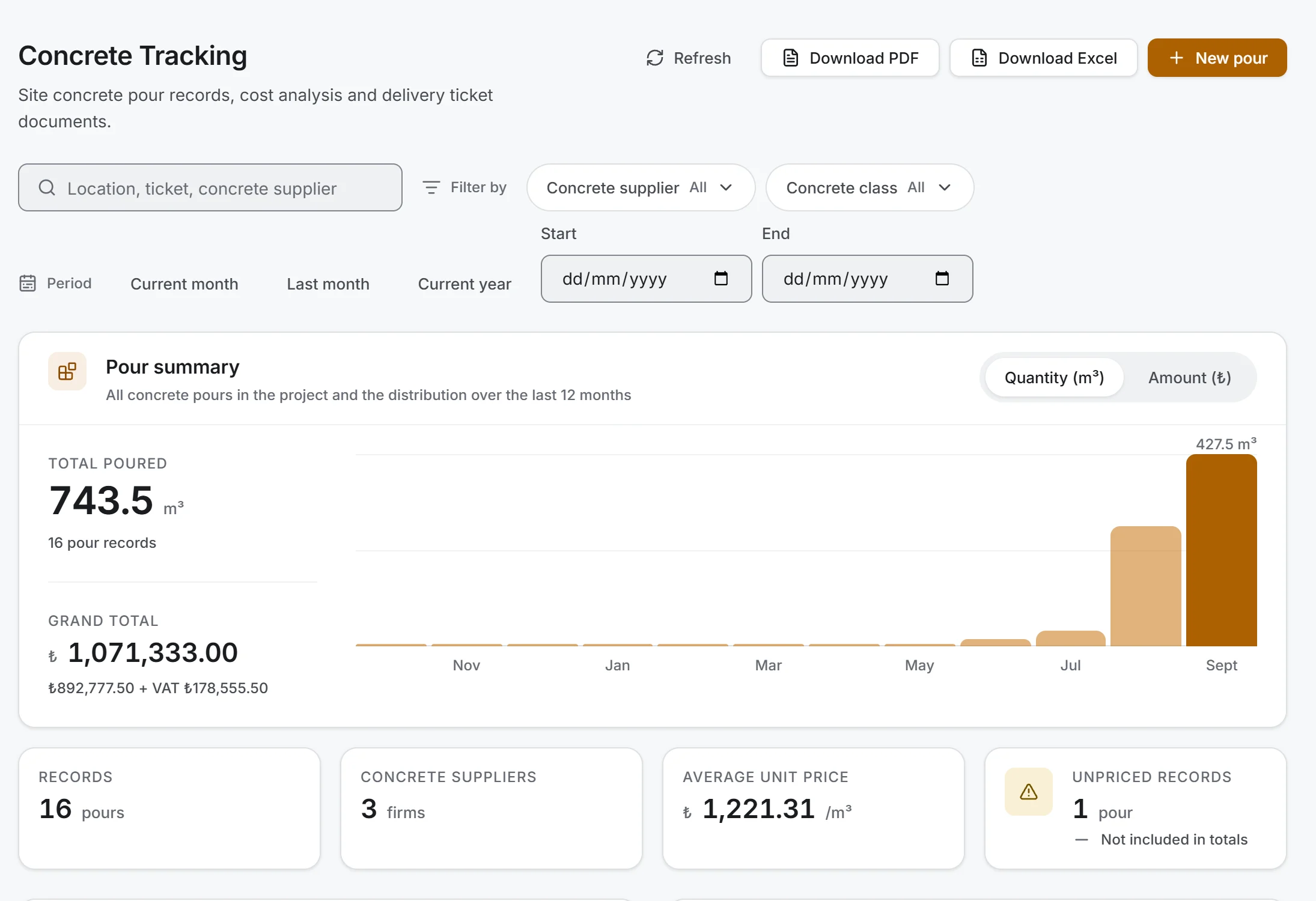
Screen taken as-is from the Windows app; data belongs to a sample project.
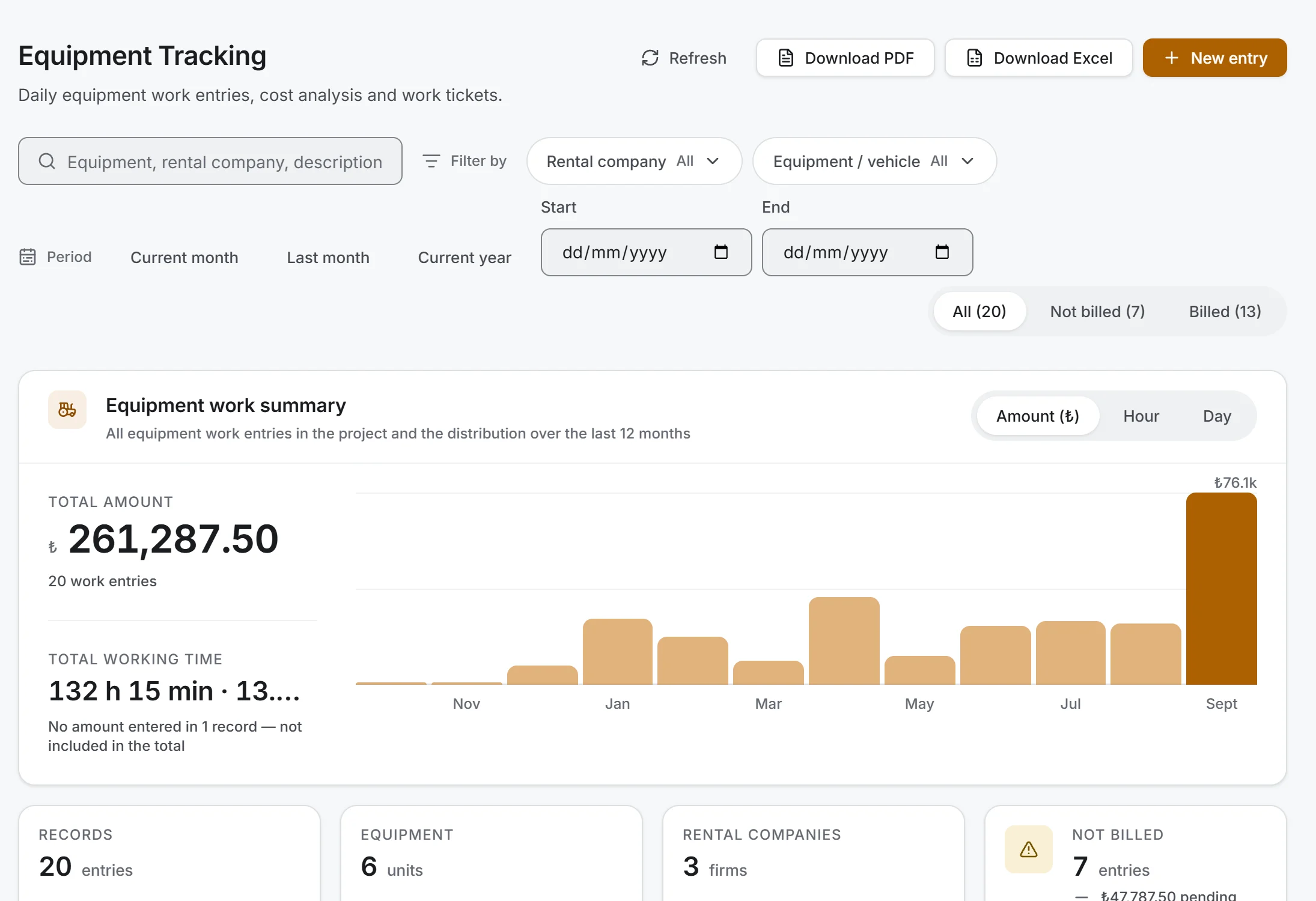
Screen taken as-is from the Windows app; data belongs to a sample project.
Concrete: total cubic metres poured and what they cost on one screen, broken down by firm and class.
Equipment: working time per unit (hours apart from days) and the total amount.
What goes into this month's payments: equipment work not yet in an interim payment has its own counter and lists in one click.
Which sample test is due: 7- and 28-day strength tests without a result are listed in a strip at the top of the page.
Date, ticket number, firm and agreement; choosing the agreement fills in the unit price. Location, section, concrete class and quantity (m³).
Separate agreements such as a pump surcharge, winter additive or night premium are added to the unit price; amount and tax show before you save.
A photo or PDF; it opens from the paperclip button in the list.
If you wish, add times, slump, concrete and air temperature, admixture and pump; the trucks that brought the pour with plates and times; and samples with 7- and 28-day strength results. None of these change the amount. Pass or fail is your call.
First the firm, then its equipment agreement; unit price and unit (hour or day) come from the agreement.
Hours and minutes on an hourly agreement, a single quantity on a daily one (1.5 days, say). The amount is time × unit price, calculated as you type.
Photo or PDF, up to five per entry; note what the machine did that day.
The Not billed filter shows waiting entries; when an interim payment is issued, they are chosen as items.
date, firm, agreement, ticket, location, section, class, quantity, unit price, amount, tax, grand total; extra columns when pour slips and trucks are recorded.
samples, 7- and 28-day strengths and their status; Excel or PDF.
one pour's details, slip, trucks and samples.
date, firm, machine, job, time, unit, unit price, amount and billing status; billed and waiting entries in different colours.
List exports follow the filter on screen and state it at the top of the file; in Excel the header row is frozen, filters are on and numbers are real cell values. Times are totalled per unit: hours and days are never added together in one cell.
Once an equipment entry is in an interim payment, its date, machine and time are locked and it cannot be deleted; the note and tickets stay editable.
A concrete price you typed by hand is kept; if the agreements give a different figure, the app shows it and leaves the choice to you.
If the truck lines do not add up to the pour quantity, the window shows the difference.
If a pour cannot be posted to the account, the record stays in place and the transfer can be restarted.
Firms and agreements come from Subcontractors. Every pour with a price and a firm posts to Accounts with its ticket number. Equipment work does not post to accounts directly but through Interim Payments: it is added to a payment, and the account entry is made there. Concrete and equipment costs show in Financials, and per-firm totals on the subcontractor scorecard in Subcontractors.
Concrete Tracking and Equipment Tracking work in the Windows, iOS and Android apps: pours and work entries are recorded on site from the phone, and tickets are photographed on the phone and attached to the record.
Both modules are included in the free plan. Concrete and equipment firms are also set up in Subcontractors with agreements, so they count toward the free plan's limit of 3 subcontractors and 5 agreements per project.
Yes; a photo or PDF with the pour. It opens from the paperclip button in the list.
Set it up as a separate agreement in Subcontractors and tick it on the pour as a surcharge; it is added to the unit price.
No. You enter the 7- and 28-day results and decide pass or fail; test dates are worked out from the pour date.
When issuing a payment, choose the equipment agreement; unbilled entries are listed, and those you select become items.
Yes. Time is entered in the agreement's unit, and totals are shown per unit.