Daily site report app · Windows, iOS and Android

Daily site reports:weather, crews and work done, one report per day.

The Sitabula Daily Report module puts on record how a day went on site. One report is written for each day: the weather, the subcontractor crews on site with their headcounts, and what those crews did and where. A day's report goes to signature, to the file or to an interim payment meeting as PDF or Excel; the whole month goes into one Excel file. (Some teams call this a daily log.)

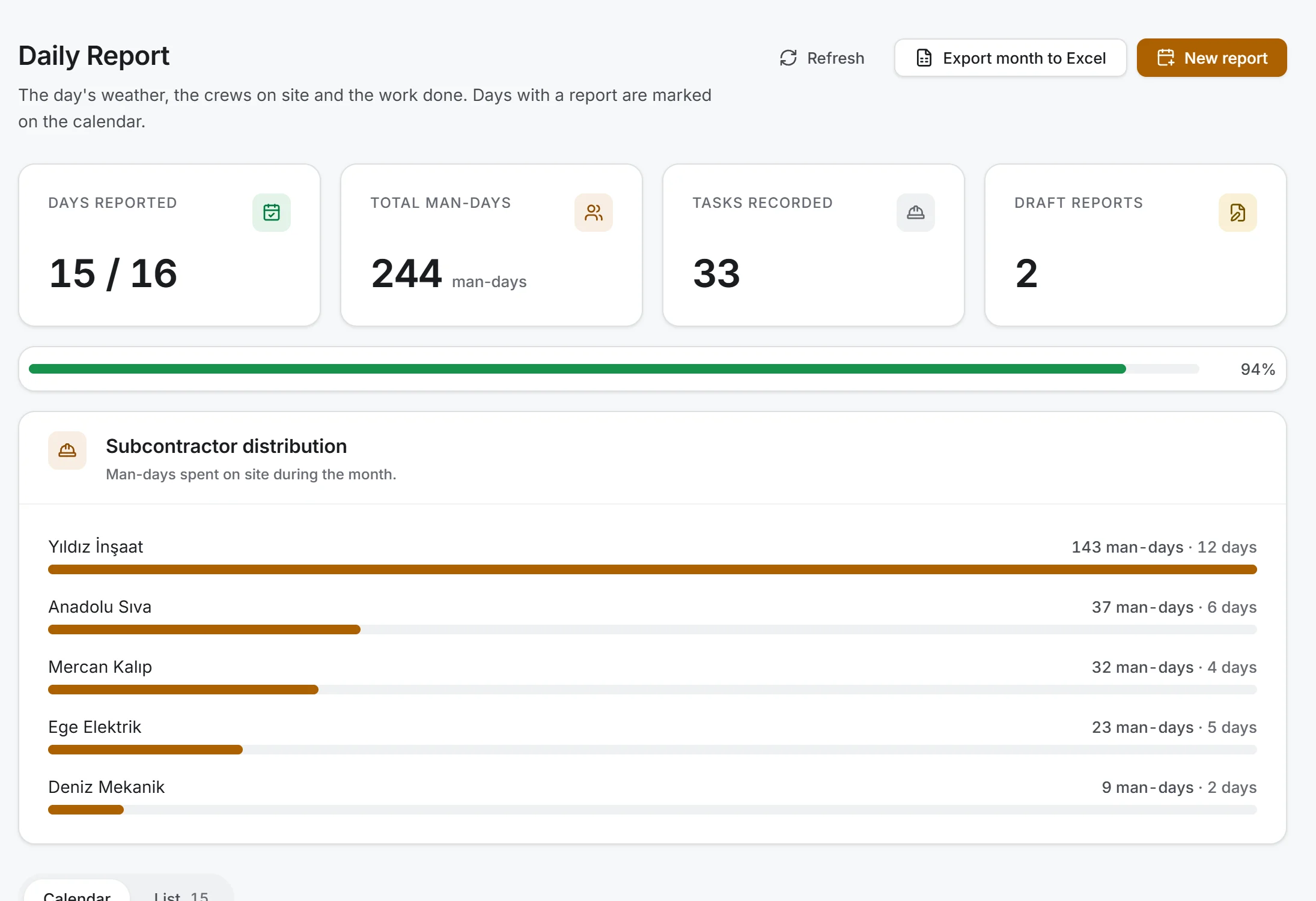
Daily Report screen: month calendar, days with and without a report, and the selected day's panel

Screen taken as-is from the Windows app; data belongs to a sample project.

01 Yesterday

How many people were on site yesterday?

  • 01

    On-site headcount: the sum of crew headcounts, calculated for you.

  • 02

    Which subcontractor did which job: each crew has its own task list; tasks are recorded by building, unit, area and work item.

  • 03

    Which day was skipped this month: the page is a month calendar; a day with a report is coloured, a day without one stays empty.

  • 04

    How many man-days each firm spent: the month's Excel gives every day's crews and headcounts on one sheet.

02 Step by step

How it works

  1. 01

    Pick the day.

    Click the day on the calendar and choose Create report. Weather is one of six options; temperature is optional.

  2. 02

    Add the crews.

    Choose the subcontractor on site and type that day's headcount. A report needs at least one crew to be saved.

  3. 03

    Write the tasks.

    Select the crew, pick building, unit, area and work item in order and press Add task; the location stays selected, so a second task in the same area takes a moment. Work not linked to a work item (site cleaning, on-site transport, formwork stripping) goes in as a Free-form task.

  4. 04

    Save.

    If the day is not over, Save draft; once it has closed, Save report. A draft is marked on the calendar and on the PDF.

The task list narrows to the selected crew's subcontractor: a work item assigned to another firm cannot be written to that crew.

03 Exports

Exports

01

The day's PDF

an A4 portrait document made to be signed and filed. Project, date and headcount at the top; weather, reporter and number of tasks in the details strip; each crew under its own heading with its tasks by building, unit, area and work item. A draft carries Draft in the top right corner.

02

The day's Excel

one sheet with subcontractor, headcount, building, unit, area and work item columns.

03

The month's Excel

every report of the visible month, oldest first; date, weather, subcontractor, headcount (man-days), building, unit, area, work item. Header row frozen, filters on, real date cells.

Exporting needs no edit permission: anyone who can read a report can file it.

04 Safeguards

Safeguards

  • 01

    One report per day: if a second report is started for the same day, the app says so and does not save it.

  • 02

    No reports for future dates.

  • 03

    The coverage rate follows the company's weekend setting; a site that works Saturdays does not go over 100%, and one that doesn't is not penalised.

  • 04

    Editing a report does not delete and rewrite the crews; if saving is interrupted, the rest stays in place.

05 Connections

How it connects

Building, unit, area and work item lists come from Field Progress, crews' firms from Subcontractors. Timesheets keep the same day person by person as a monthly total; the daily report keeps it as crews and headcounts. How much of the work planned in Schedule was done on a given day is written here.

06 On the phone

On the phone

Daily reports are written in the Windows, iOS and Android apps; the site manager enters the report on the phone and the office reads the same report on the desktop.

07 Free plan

On the free plan

Daily Report is included in the free plan. Crews are chosen from the subcontractor list, so on the free plan a report can hold crews from up to 3 firms; the project structure the tasks sit in is limited to 1 building, 1 unit and 2 areas.

08 FAQ

Frequently asked

Can I export the daily report to Excel?

Yes. A day's report exports to Excel and PDF, and the whole month to one Excel file.

Can I write a report for a past day?

Yes; just select the day on the calendar. The report date can also be changed later.

Could a draft be mistaken for a final report?

No. A draft's PDF says Draft in the top right corner.

How do I record work not linked to a work item?

As a free-form task; the PDF shows Free-form task in the location columns.

Does the daily report replace timesheets?

No. The daily report keeps crew headcounts; Timesheets keep days worked person by person. The two describe the same day in two levels of detail.

Write today's report in Sitabula. One project is free, with no time limit.