
Subcontractor payment app · Windows, iOS and Android

Subcontractor payments:site work, lump sums and equipment in one interim payment.

The Sitabula Interim Payments module works out how much a subcontractor is paid (in some markets this is also called an application for payment). Work done on site, lump-sum payments tied to a contract, deductions and equipment work entries come together in one interim payment; the amount is calculated, tax is shown separately, and a credit line is written to the subcontractor's account. The payment certificate to sign with the subcontractor comes out as a one-page PDF.

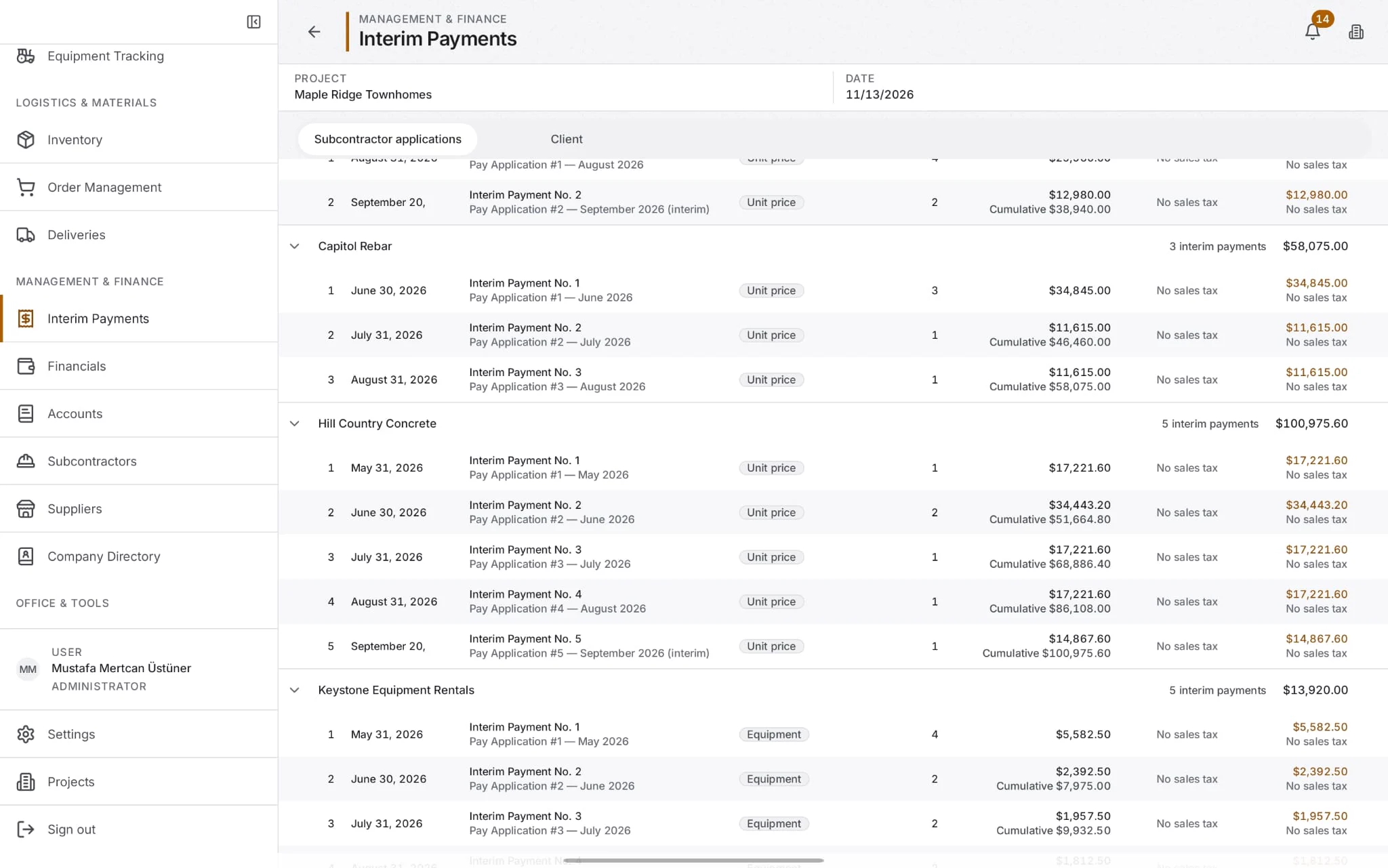
Interim Payments on the tablet: payment applications grouped by subcontractor, each with its date, type, amount and running total

Screen taken as-is from Sitabula's tablet app; data belongs to a sample project.

01 This month

How much do we owe each subcontractor this month?

  • 01

    Total Interim Payments before tax and Payable incl. tax in separate boxes: one is what the project costs, the other is what accounting pays. A twelve-month chart beside them.

  • 02

    Breakdown by subcontractor: how many payments, how many items and what amount went to each firm; deductions in their own column.

  • 03

    What is left on a lump-sum contract: the remaining amount on a lump-sum or deduction agreement shows under the amount box as you add items.

  • 04

    Which record does not add up: if the item total differs from the saved amount, the row carries a badge and the panel explains why.

02 Agreements

Five agreement types, one interim payment

Agreements are set up per firm in Subcontractors, and every item is tied to an agreement. One interim payment can mix items of five types:

TypeWhere the item comes from
Unit priceWork items marked Done on site; amount = quantity × unit price
Day rateAlso from work items, at the agreement's day rate
Lump sumYou type the amount paid in this payment; it cannot exceed what is left of the contract
DeductionYou type the amount to deduct without a minus sign; the item lowers the total
EquipmentEquipment work entries from Equipment Tracking not yet in a payment
03 Step by step

How it works

  1. 01

    Pick the subcontractor and the date.

    The date starts as today and is the date written to the account ledger. Tick tax if needed and enter the rate.

  2. 02

    Add items to the basket.

    Choose an agreement on the left; its unbilled work items or work entries are listed, and Select all takes them in one go. The basket and the total on the right update with every choice.

  3. 03

    Create the interim payment.

    The selected work items and equipment entries are tied to this payment, and a credit line is written to the subcontractor's account.

  4. 04

    Take the certificate.

    Payment certificate (PDF) in the payment panel prepares the document to sign.

04 Exports

Exports

01

Payment certificate (PDF)

A4 portrait; project, payment number and a document reference that never changes, the two parties, an item table (agreement, type, location, quantity, unit price, amount), subtotal, tax, grand total, notes and two signature boxes.

02

Subcontractor balance statement (PDF)

what has been spent and what is left on each agreement of one subcontractor, followed by the list of payments.

03

Excel

two sheets. Interim payments shows who was paid how much; Items shows what for (building, unit, area, quantity, unit price). The header row is frozen, filters are on, dates and numbers are real cell values.

04

PDF report

an A4 landscape status report with the filter summary and grand total.

List exports follow the filter on screen and state it at the top of the file. All four exports work with view permission: accounting can take the certificate for any payment it can see. Documents come out in the app's current language; switch language and export again to give a subcontractor a Turkish or English certificate.

05 Safeguards

Safeguards

  • 01

    A work item or an equipment entry can be in only one interim payment at a time; billed ones drop out of the selection list.

  • 02

    An issued payment is frozen: items show the unit price of the day it was issued, so a later change to the agreement price does not change it.

  • 03

    A lump-sum or deduction amount that exceeds what is left is not added to the basket.

  • 04

    If writing to the account ledger fails, the payment is still saved; the screen says so, and Resend to Accounts writes only the missing line. You do not issue the payment twice.

06 Connections

How it connects

Agreements and contract values come from Subcontractors, work items and their payment types from Field Progress, equipment entries from Equipment Tracking. The quantity of a unit-price work item can be linked to a saved sheet in Quantity Take-offs. Each payment is posted to the subcontractor's ledger in Accounts; subcontractor cost adds up in Financials, and the twelve-month chart appears in Overview.

07 On the phone

On the phone

Interim payments are issued on Windows. In the Android and iOS apps you read payments, their items and the summary, and take the certificate and reports; new payments are not created on the phone.

08 Free plan

On the free plan

Interim Payments is included in the free plan. The free plan allows up to 3 subcontractors and 5 agreements per project, and payments are issued against those agreements.

09 FAQ

Frequently asked

Can I get the payment certificate as a PDF?

Yes. It is a one-page A4 document with two signature boxes.

Can I export payments to Excel?

Yes; a two-sheet workbook, one for payments and one for items.

How is a deduction applied?

Set up a deduction agreement in Subcontractors and type the amount without a minus sign. It lowers the total and shows separately on the certificate and in Excel.

Does the account update when I issue a payment?

Yes. Every payment is written to the subcontractor's account as a credit line, with its description.

Can I issue payments from the phone?

No. On the phone you read payments and take the certificate; issuing is done on Windows.

Can accounting take the certificate without edit permission?

Yes. Exporting is a read action.

Issue this month's payments in Sitabula. One project is free, with no time limit.