
01
Excel
a details block (project, take-off name, folder, subcontractor, date), an orange header row and a TOTAL row. Numbers are numbers with the unit in the format; formulas come out as live Excel formulas. Header row frozen, filters on.

The Sitabula Quantity Take-offs module is not a list but a real spreadsheet. You type the item and its dimensions in each row and the quantity is calculated; where needed, cells take formulas just as in Excel. A saved sheet goes to a subcontractor or the file as Excel or PDF, and is linked to a work item in Field Progress, from where the quantity flows into interim payments.
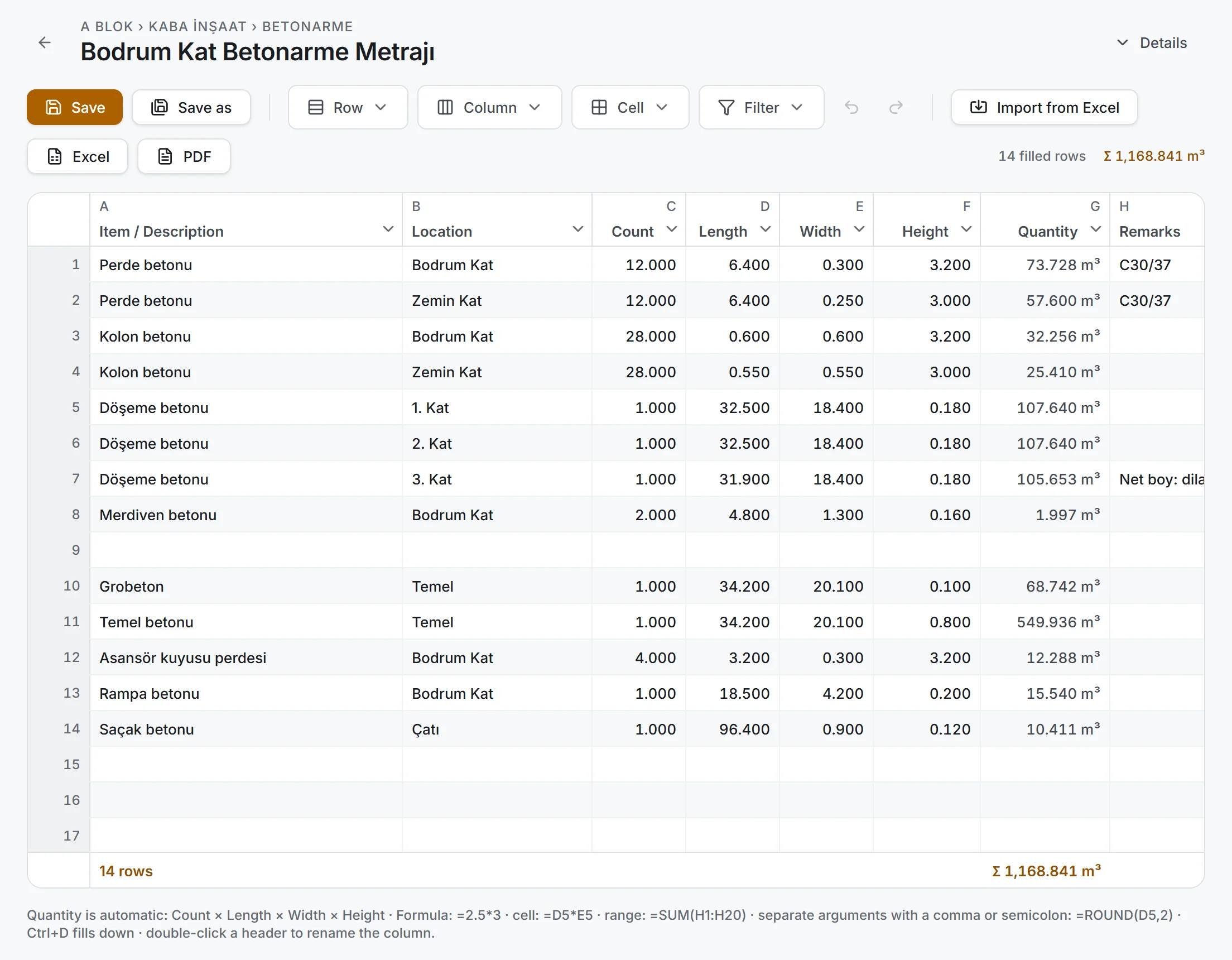
Screen taken as-is from the Windows app; data belongs to a sample project.
Which dimensions were multiplied: count, length, width and height on every row; the quantity is their product.
How much there is in one place: the total of filtered rows in the strip below.
Who changed it and when: each sheet's last change in the library.
Where the sheets are: a take-off library with folders up to three levels; the search box looks in sheet names.
Press New take-off in the library; an empty sheet opens with forty working rows. Give it a name and, if you like, a folder and a subcontractor.
Quantity = Count × Length × Width × Height. An empty dimension is left out of the product; 0 is a real zero. Type a number or formula into the quantity cell by hand and it is kept even if the dimensions change.
A cell starting with = is a formula: arithmetic, cell references, ranges and absolute references. English and Turkish function names both work (SUM / TOPLA, ROUND / YUVARLA…); the argument separator is a semicolon.
Columns can be added, deleted, renamed and moved; the unit is part of the cell's number format, cells can be merged, and rows filtered and sorted.
Save updates the sheet; Save as makes a second version of it.
If you already have a sheet in Excel, use Import from Excel: download the template and fill it in, or pick your own file. The preview shows how many rows were read, which columns matched and how many formulas were converted; rows either replace the existing ones or are added at the end. Nothing is written until you confirm the preview.
You type the dimensions: Sitabula does not take quantities off drawings or models.
a details block (project, take-off name, folder, subcontractor, date), an orange header row and a TOTAL row. Numbers are numbers with the unit in the format; formulas come out as live Excel formulas. Header row frozen, filters on.
an A4 landscape table; date, row count, subcontractor and total in the top right; empty rows are not printed.
an empty Excel file carrying the sheet's column headers.
Exporting and filtering need no edit permission.
No total across mixed units: cubic metres and square metres are not added up, and the total reads (mixed units). A sheet with more than one unit cannot be linked to a work item.
A formula that cannot be calculated shows an error mark (#VALUE!, #DIV/0!, #REF!…); the mark is not saved.
A second sheet with the same name in the same folder is never created silently; the app offers to overwrite or asks for a new name.
If saving cannot reach the server, your rows stay on screen.
A saved sheet is linked in Field Progress as the source of a work item; quantity and unit come from the sheet's total and are locked. The quantity of a unit-price work item ends up in Interim Payments; the sheet is the record of where that number came from.
Sheets are prepared and edited on Windows. In the Android and iOS apps you open and read saved sheets and export them to Excel and PDF.
Quantity Take-offs is included in the free plan. The work items a sheet links to sit in the project structure, which on the free plan is limited to 1 building, 1 unit and 2 areas.
Yes. Recognised headers are matched by name and formulas are converted; the preview shows the result.
Yes; they come out live, so changing a dimension in the file changes the quantity.
English names such as SUM, AVERAGE and ROUND, and their Turkish equivalents.
The sheet is linked to a work item in Field Progress; once the item is Done, it is added to a payment through a unit-price agreement.
No. You type dimensions into the sheet or import them from Excel.
No. On the phone sheets are read and exported; editing is done on Windows.